
How to Turn Keynote into Book: A Step-by-Step Guide
Table of Contents
- Before You Convert: What Your Keynote Needs First
- Transcribe a Keynote Speech to Capture Your Full Thinking
- Build a Keynote Presentation to Book Outline
- Export and Adapt Your Slides for Book Pages
- Turn a PowerPoint Presentation into a Book (and Keynote Workflows)
- How to Write a Book from a Speech: Editing and Restructuring
- From Slide Deck to Print-Ready Book: Final Quality Checks
- Frequently Asked Questions
Last Updated: October 18, 2026
Before You Convert: What Your Keynote Needs First
Learning how to turn Keynote into book starts long before you touch the File menu. Most decks are built for a stage, not a page.
Your deck needs three things before conversion: a clear throughline, source material beyond the slides, and a decision about who the book serves. Skip these and you'll get a PDF of bullet points, not a manuscript.
Audit Your Slide Content for Book Readiness
Run a quick audit of every slide and sort each one into three buckets:
- Keep the idea: the concept survives, the phrasing won't
- Keep the story: an anecdote or example worth expanding
- Cut it: filler slides, agenda slides, and anything that only worked live
Most keynotes carry 40 to 60 slides. A short book chapter holds roughly 2,000 to 3,000 words. That mismatch is the whole problem. Your slides are headings, not paragraphs.
Gather Your Source Materials
Collect everything that already holds your real thinking: a recording of the talk, your speaker notes, old client emails, internal documents. You're not writing from scratch. You're recovering material that already exists in compressed form.
Transcribe a Keynote Speech to Capture Your Full Thinking
Transcribe a keynote speech before you write a single new sentence. Speech carries the connective tissue slides leave out: the asides, the qualifiers, the off-script stories.
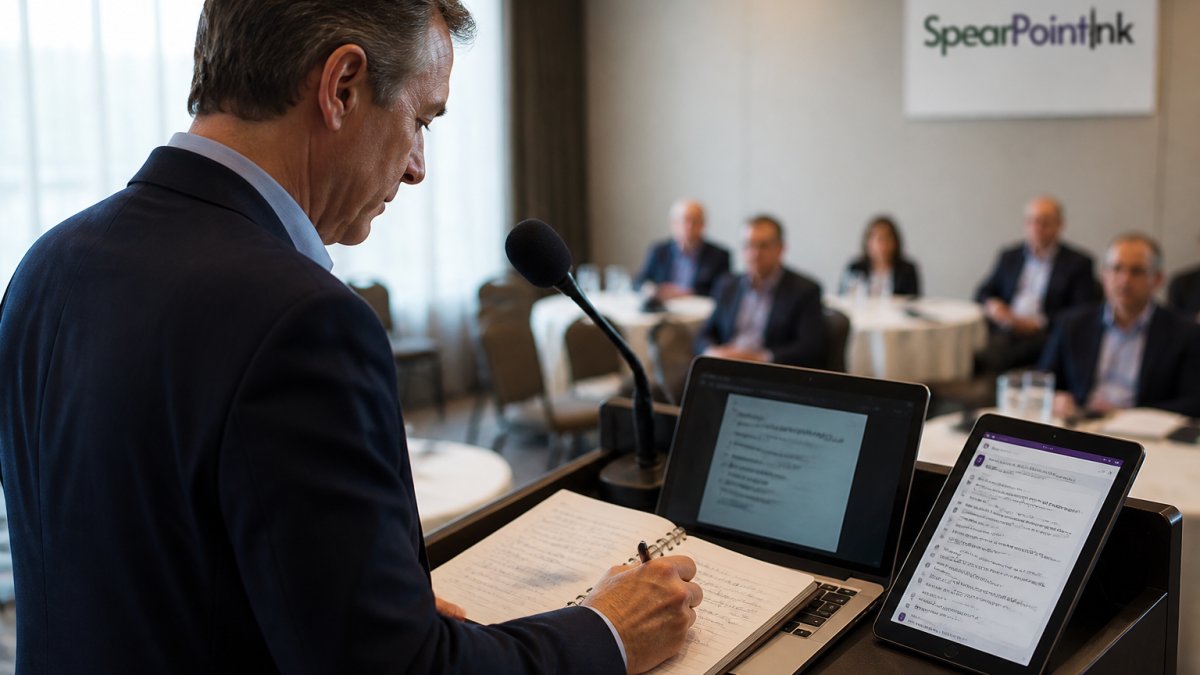
You have three practical routes:
- Automatic transcription: run the recording through a speech-to-text tool, then correct names and numbers by hand
- Professional transcription: worth it for a long talk where accuracy matters
- Manual notes: slower, but you'll catch your own phrasing as you go
Expect the raw transcript to be messy, spoken English repeats itself. Clean it later. What matters now is capturing how you actually explain your ideas out loud.
Build a Keynote Presentation to Book Outline
A keynote presentation to book outline is a restructuring job, not a copy job. Your talk likely follows a stage rhythm: hook, three points, big close. A book needs chapters that each stand alone and build in sequence.
Map your slides onto chapters using a simple two-column pass:
| Slide group | Book chapter role |
|---|---|
| Opening story | Chapter 1 hook |
| Framework overview | Chapter 2 or 3 |
| Each major point | One chapter each |
| Case examples | Spread across chapters |
| Closing call | Final chapter |
Then check the order. On stage, you can gesture back to an earlier point. On the page, readers can't. Every chapter has to make sense to someone who skipped the last one.
Export and Adapt Your Slides for Book Pages
Exporting is the easy part. Making the output look like a book is where most people stall, because a slide and a book page obey different geometry. A standard widescreen Keynote slide is 1920 by 1080 pixels at 16:9, roughly 13.33 by 7.5 inches. A common trade paperback trim size is 6 by 9 inches. Drop a 16:9 slide onto a 6 by 9 page and it becomes a 6 by 3.375-inch strip with more than two inches of dead space above and below.
Export Keynote to PDF and Other Formats
Open your file, choose File > Export To, and pick your format. PDF is the safest choice for layout review and print handoff because it preserves page geometry and embeds fonts. Set the slide range, choose the highest image quality, and decide whether to include presenter notes.
For text you plan to reuse, export to PowerPoint instead. The slide content stays editable, and you can move shapes and text into a word processor.
Resize Widescreen Slides for Book Page Dimensions
A widescreen slide is built for a screen, not a page. Book pages are taller than they are wide, so a widescreen slide shrinks to a thin strip with dead space above and below. Two fixes work:
- Rebuild the layout: move text and images into a portrait page setup in your design tool
- Recompose the content: treat each slide as raw material and lay it out fresh on the page
Don't stretch slides to fit. Instead, set up your page before you place a single element:
- Trim size: choose 6 by 9 inches for most nonfiction paperbacks, 5.5 by 8.5 for a shorter book, or 7 by 10 for a workbook feel. Match the trim to your printer's standard sizes to avoid custom setup fees.
- Margins: inside (gutter) margins need to be larger than outside margins because the binding eats space. A common starting point is 0.75 inch inside, 0.5 inch outside, 0.75 inch top, and 0.75 inch bottom for a 6 by 9 page.
- Bleed: if any image or color block runs to the edge of the page, add 0.125 inch of bleed on all four sides. Without bleed, the printer trims into white space and you get a thin white sliver on the edge.
Convert Slides into Book Pages Without Losing Meaning
A slide is a visual argument; a book page is a reading experience. When you move a slide onto a page, decide what the reader needs that the audience did not:
- Turn bullet fragments into sentences. "Three levers: price, mix, retention" becomes a paragraph explaining why those levers matter and how they interact.
- Rebuild diagrams at page size. Redraw them with fewer labels, larger type, and a caption that carries the explanation.
- Add captions and figure numbers. Readers flip back to figures; audiences do not. Number every figure and reference it in the text.
This is where most conversions fail: the export succeeds, the PDF opens, and the result reads like a handout because no one rewrote the slide language for a reader. Fix the content before you convert, not after.
Turn a PowerPoint Presentation into a Book (and Keynote Workflows)
To turn a PowerPoint presentation into a book, the workflow mirrors Keynote almost exactly: export, edit, and relayout. The difference is where the text lands.
Move slide text into a word processor first. Strip the bullets, then rewrite each line as a full sentence.
If you're on a Mac and repeating this across many decks, AppleScript and Automator can batch exports and save hours.
How to Write a Book from a Speech: Editing and Restructuring
To write a book from a speech, treat the transcript as your first draft and edit hard. Spoken language needs three passes before it reads well:
- Cut the repetition: remove the restated points and verbal tics
- Add the missing logic: write the transitions you delivered with a gesture
- Restructure for readers: reorder sections so each chapter stands alone
This is where deep expertise either survives or gets flattened. A book is where you get the nuance back.
Turn Speaker Notes into Readable Prose
Presenter notes are the closest thing you have to a manuscript. They hold the explanation you gave yourself before the talk. Expand each note into a full paragraph, then check it reads naturally aloud. If a sentence only works with a slide on screen, rewrite it. Refining these prose segments creates a cohesive narrative structure that prepares your manuscript to self-publish on Amazon KDP.
From Slide Deck to Print-Ready Book: Final Quality Checks
Before you call it done, run a final pass against your output format. Print and ebook have different demands, and skipping this step causes most conversion errors. Here is the checklist: what to inspect, in what order, and what a failure looks like.
Print versus Ebook: Different Outputs, Different Rules
A print book and an ebook are not the same file with a different extension. Decide which you are producing before you proof, because the requirements diverge:
- Print PDF: fixed layout, 300 ppi images at final size, CMYK or grayscale as your printer requires, embedded fonts, bleed on any edge-to-edge element, and a trim size that matches the printer's standard. Check that no text falls inside the gutter margin.
- Reflowable ebook (EPUB): text reflows to the reader's screen, so fixed page breaks and absolute positioning break. Use styles for headings, keep images at 150 to 300 ppi, add alt text to every image, and build a linked table of contents.
- Fixed-layout ebook (PDF or fixed EPUB): preserves your page design but does not reflow, so it can be hard to read on a phone. Use it for heavily designed books, not text-heavy nonfiction.
Produce the print PDF first, then derive the ebook from the same edited manuscript rather than from the print PDF. Deriving an ebook from a print PDF usually produces broken reflow and missing alt text.
A Practical Preflight Checklist
Run these checks in order. Each one catches a class of error that is expensive to fix after upload:
- Fonts: confirm every font is embedded in the PDF. Missing fonts substitute silently and change line breaks.
- Image resolution: inspect every image at 100 percent. Anything below 300 ppi at final size will look soft in print.
- Text overflow: scan every page for text running past the margin, overlapping an image, or disappearing into the gutter.
- Page order: confirm front matter, chapter order, and figure numbering match the manuscript. A missing page in the middle is easy to miss on screen.
- Links and TOC: in the ebook, click every table-of-contents entry and every internal link. Broken links are the most common ebook defect.
- Alt text and contrast: add alt text to every image and check that text meets the Web Content Accessibility Guidelines on contrast.
- Rights: confirm you hold rights to every image, chart, and quoted passage. The U.S. Copyright Office guidance is the place to check on fair use and permissions before publishing.
- Proof copy: order a physical proof before you approve the print file. Screen previews hide margin, bleed, and color problems that a printed copy reveals immediately.
Troubleshooting Export and Conversion Errors
If an export fails, restart the app and try a smaller slide range. Corrupted fonts and oversized images cause most export errors. A few common fixes:
- Export hangs or crashes: reduce the slide range, remove large video or audio, and re-export.
- Blurry images after export: raise the image quality setting and confirm the source images are high enough resolution.
- Missing fonts in the PDF: embed fonts in the export settings or convert display type to outlines.
This is also where a second set of eyes pays off. Bob Graham, our founder and process lead, built our review process around one question: does this still sound like the person who gave the talk? Danielle Vaziri described gaining a new perspective through that process, and Christopher Zeches turned his expertise into The Binder On The Shelf. That's the standard we hold every manuscript to.
Frequently Asked Questions
Can you make a book from a PowerPoint or Keynote presentation?
Yes, but it takes more than exporting slides. A presentation is built for live delivery, while a book needs narrative flow, expanded explanations, and reader-friendly pacing. Start by transcribing your spoken content, then use your slide titles as chapter or section markers. You will need to write transitions, add context that you normally speak aloud, and reformat visuals for a page layout. The conversion works best when you treat slides as an outline, not as the finished manuscript.
How do I convert a Keynote presentation to PDF for book layout?
Open your Keynote file, go to File > Export To > PDF. In the export dialog, choose the slide range you need, select image quality (higher for print), and decide whether to include presenter notes. For book layout, export individual sections rather than the full deck so you can place them into your page design software. Keep in mind that PDF export flattens animations and some interactive elements, so review the output carefully before using it as source material for your book pages.
How much content should I add when turning a keynote into a book?
A typical 45-minute keynote yields roughly 6,000 to 9,000 spoken words, but a book manuscript usually needs 25,000 to 60,000 words depending on your genre and depth. That means you will expand significantly. Add stories, examples, data, and explanations that you normally deliver verbally. Use your transcript as the backbone, then layer in detail that a reader cannot ask you to clarify. The goal is to make the book stand alone without your live narration.
Should I use a transcript of my keynote to write a book?
A transcript is an excellent starting point because it captures your natural phrasing and the full depth of your thinking. However, raw transcripts read as spoken language, with repetition and incomplete sentences. Edit heavily: remove filler, reorganize ideas into logical chapters, and convert verbal explanations into written prose. The transcript preserves your voice, but the book requires deliberate rewriting to meet reader expectations for clarity and structure.


